
Selecting the Courses tab will take you to the Courses section of myUWE. Below the main tab you should see two subtabs: Blackboard Courses and Coursework Collection.
If you are a student, there is a separate guide to help with Coursework Submission.

Coursework Collection subtab
If you are attached in ISIS to the module run as a Coursework Collector, the Coursework Collection subtab is where you would collect coursework submitted by your students.
The following conditions must be met for coursework to be submitted and collected via myUWE:
- The coursework is designated in ISIS as submitted online
- You are attached to the relevant module run as a Coursework Collector
- The date of the Field Board has not passed
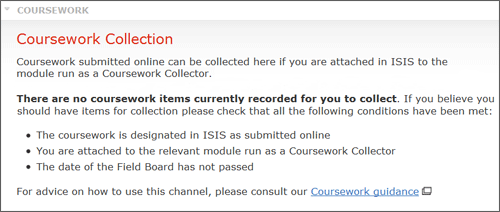
If the coursework has not be designated correctly in ISIS, or you have not been attached in ISIS as a Coursework Collector, you will see the following message on the Coursework Collection subtab:
Work List
If you and the coursework have been correctly setup in ISIS, under the heading ‘Work List’ you will see a coursework item for each piece of coursework you are attached. Coursework items will only be visible to staff once the release date has passed.
The coursework items are displayed in order of closure date with the newest closure date at the top of the list.
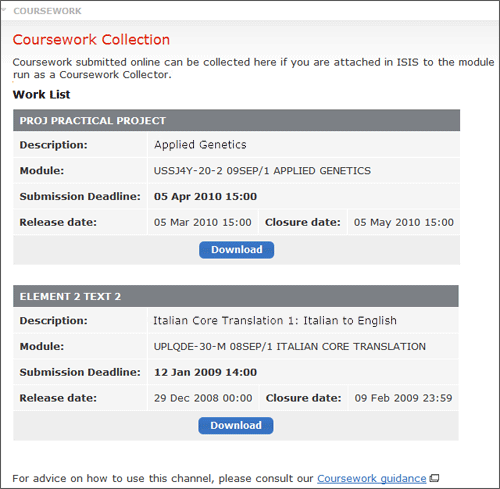
Each coursework item will display the following information:
- Title: the name of the coursework item
- Description: a brief description of the work. This may also include instructions for the submission e.g. please include photos with work
- Module: the module code and module name
- Submission Deadline: the deadline that the coursework needs to be submitted by
- Release date: the date from which students were able to upload coursework
- Closure date: the last date that students will be able to to view this coursework in myUWE. Please note this is not the Submission Deadline
Downloading coursework
To see what submissions have been received, select the ‘Download’ button in the coursework item and you will be shown a breakdown of ‘Completed Submission Attempts’ and ‘Incomplete Submission Attempts’.
Completed Submission Attempts
If there are no completed submissions, you will see the text “There are no complete submission attempts”.
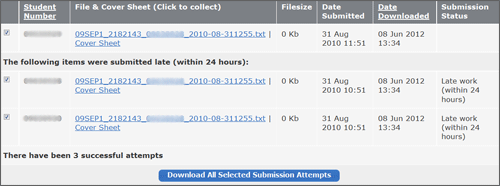
If there are completed submissions, they will be displayed in a table showing student number, file and cover sheet links, file size, date submitted and date downloaded.
To download the submissions, select the checkbox to the left of each submission you want to download and select the ‘Download All Selected Submissions Attempts’ button. You will receive a file Download box with the option to ‘Open, Save or Cancel’. Select ‘Save’ and browse to where you want to save the files on your computer. The files will be saved as a zip file - please see our zip file guidance if you are unfamiliar with using zip files.
File & Cover Sheet
The file and cover sheet column in the Completed Submission Attempts table provides links to both the uploaded file and the automatically generated coversheet. The filename is renamed on upload to protect anonymity and help organise assessment. Please see the notes on anonymity for further information. The cover sheet may or may not be used by the marker, it is merely a cover sheet with pre-populated information about the associated coursework and is more useful when the work is printed before marking.
Incomplete Submission Attempts
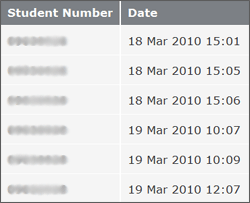
Once a student visits the Work Submission page, their activities in this area will be tracked from this point on. If they do not make a submission, their visit will be recorded in the Incomplete Submission Attempts table which displays their student number and the date/time of the visit.
Anonymity and file naming conventions
Files submitted by students to this system are renamed on upload. The naming convention both protects anonymity and helps with organising assessment.
On submission, the single file contributed will be re-named with the work item number, then the student number, separated by underscore characters.
Please note that if the file submitted is a zip or other form of file package, only the zip file or file package will be renamed. The files within will retain their original names.
Students are encouraged to view extra guidance on anonymity here.